How to Instantly Activate the Galaxy S26 Ultra's Privacy Display
The Samsung Galaxy S26 Ultra introduces a Privacy Display feature designed to enhance user privacy by narrowing the screen's viewing angle. This prevents bystanders from easily seeing the content on the display. While the feature can be accessed through the Quick Settings panel or the main Settings menu, there exists a significantly faster activation method that many users may overlook.
The Fastest Activation Method
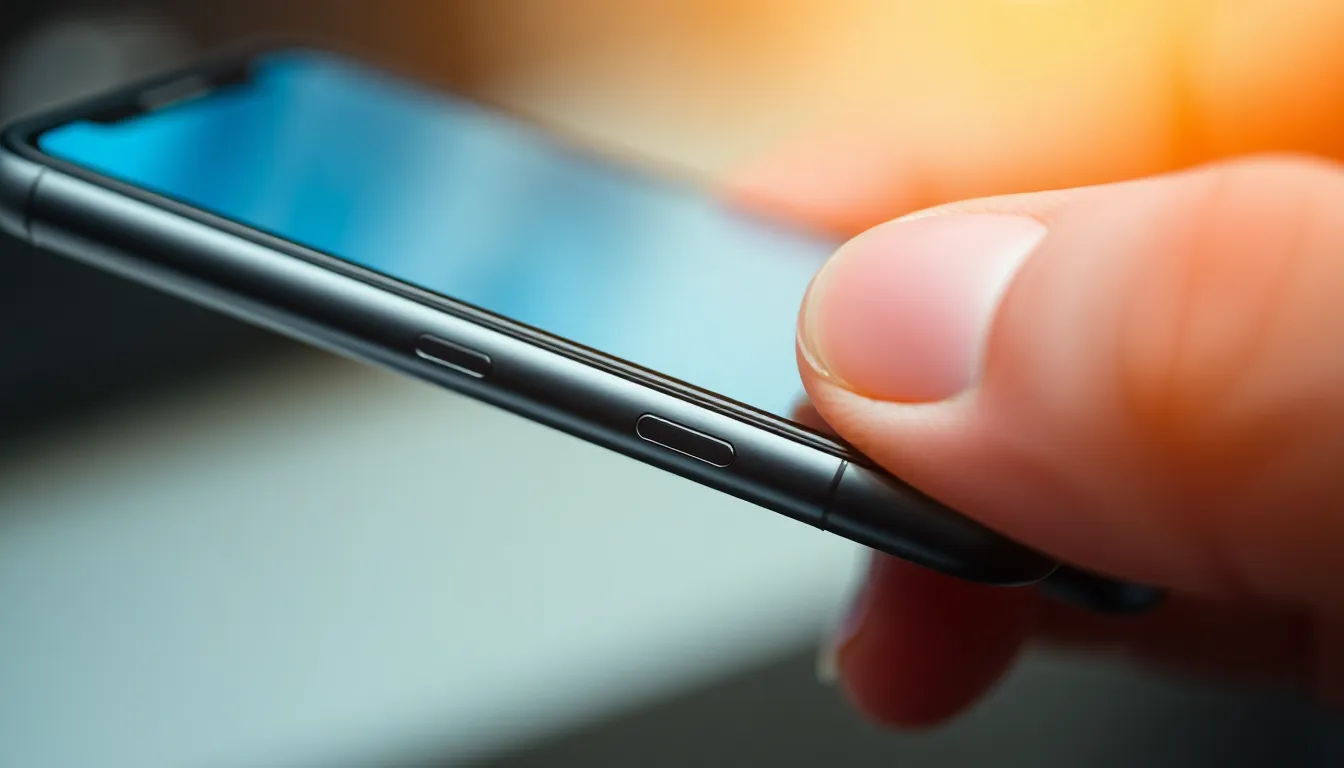
The quickest way to engage the Privacy Display on the Galaxy S26 Ultra is by performing a simple hardware gesture: double-pressing the side button. This action instantly triggers the feature, allowing users to shield their screen without needing to touch the display or navigate through any software menus. It is considered the most convenient method for on-the-fly privacy protection.
Required One-Time Setup
It is important to note that this double-press shortcut is not enabled by default. Users must configure it manually within the device's settings. The setup process involves navigating to Settings > Advanced features > Side button > Double press. From the list of available actions, users should select Privacy Display to assign it to the double-press gesture. Once this configuration is complete, the shortcut is ready for immediate use.
Feature Overview and Customization
The Privacy Display function works by limiting the screen's viewing angles, making the content difficult to see from the sides. Beyond the activation shortcut, the feature offers additional customization options. Users can reportedly configure specific triggers for its activation and define the types of content for which the viewing angle should be restricted, allowing for a tailored privacy experience.
Conclusion
For Galaxy S26 Ultra owners prioritizing privacy, configuring the double-press side button shortcut for the Privacy Display is a highly recommended step. This method provides an instantaneous way to protect on-screen information from prying eyes, surpassing the speed of traditional menu navigation. Taking a moment to set up this shortcut can significantly streamline the process of safeguarding personal data in public or shared spaces.