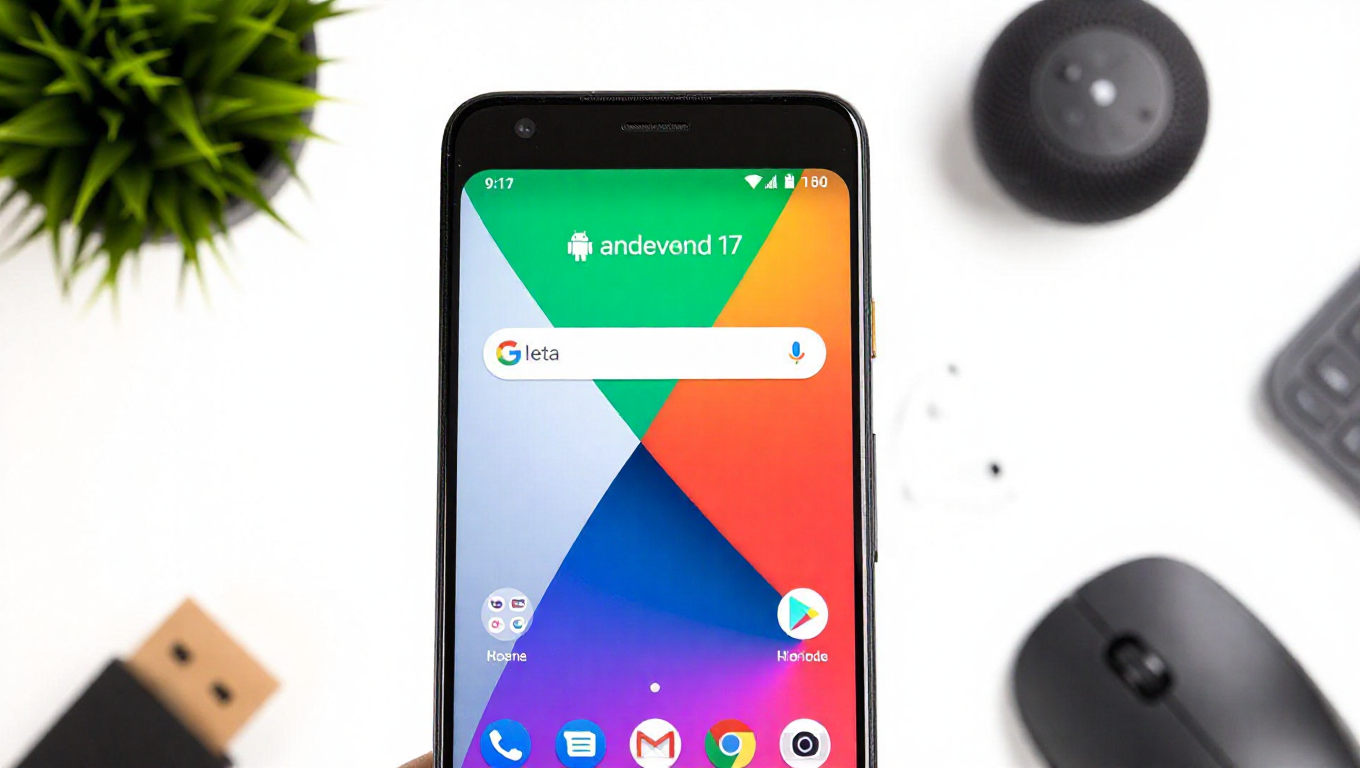
How to Install Android 17 Beta on Google Pixel Devices
Google has officially released the Android 17 beta for its Pixel lineup, marking a significant step in the operating system's development cycle. This release skips the traditional Developer Preview phase, moving directly to a more stable beta build. For enthusiasts eager to experience the latest features and improvements, installing the beta is now possible on supported devices.
Prerequisites and Important Warnings
Before proceeding with the installation, users should be aware of several critical points. Beta software is inherently unstable and may contain bugs that can affect device performance, battery life, and app compatibility. It is strongly recommended to back up all important data before installation, as the process may involve wiping the device. The beta is intended for developers and advanced users who are comfortable troubleshooting potential issues.
Compatible Devices
The Android 17 beta is available for recent Google Pixel models. Typically, this includes devices from the Pixel 4a 5G and newer, but users should verify official compatibility lists as support may vary. Older Pixel devices may not receive the beta due to hardware limitations or Google's update policy.
Installation Methods
There are two primary methods to install the Android 17 beta: over-the-air (OTA) enrollment and manual flashing. The OTA method is simpler and recommended for most users. It involves enrolling the device in the Android Beta Program through Google's website, after which the beta update will be delivered automatically via system updates. This method preserves user data, though backups are still advised.
For advanced users, manual flashing via Android Flash Tool or Fastboot commands allows for a clean installation. This method requires unlocking the bootloader, which will erase all data on the device. It offers more control over the installation process but is riskier and should only be attempted by those familiar with developer tools.
Step-by-Step OTA Installation Guide
To install via OTA, first ensure the Pixel device is charged above 50% and connected to Wi-Fi. Navigate to the Android Beta Program website on a computer or the device itself, sign in with the Google account linked to the Pixel, and enroll the device. Once enrolled, check for system updates in the Settings app under "System" > "System update." The Android 17 beta should appear as an available download. Tap to download and install, and the device will reboot into the new OS. The process may take 10-20 minutes.
Post-Installation Considerations
After installation, users may encounter app incompatibilities or performance hiccups as developers optimize for Android 17. It's advisable to check for app updates regularly and report any bugs through the Android Beta feedback tool. To revert to stable Android, users can opt out of the Beta Program, which will trigger an OTA update that wipes the device and reinstalls the latest public version.
Conclusion
Installing the Android 17 beta on Google Pixel devices provides an early look at the next generation of Android, but it comes with risks. By following the proper steps—backing up data, choosing the right installation method, and being prepared for potential issues—users can safely explore new features. As the beta period progresses, updates will likely improve stability, paving the way for the final release later this year.