How to Fix the Annoying Android Auto Display Issue with Extra Dim
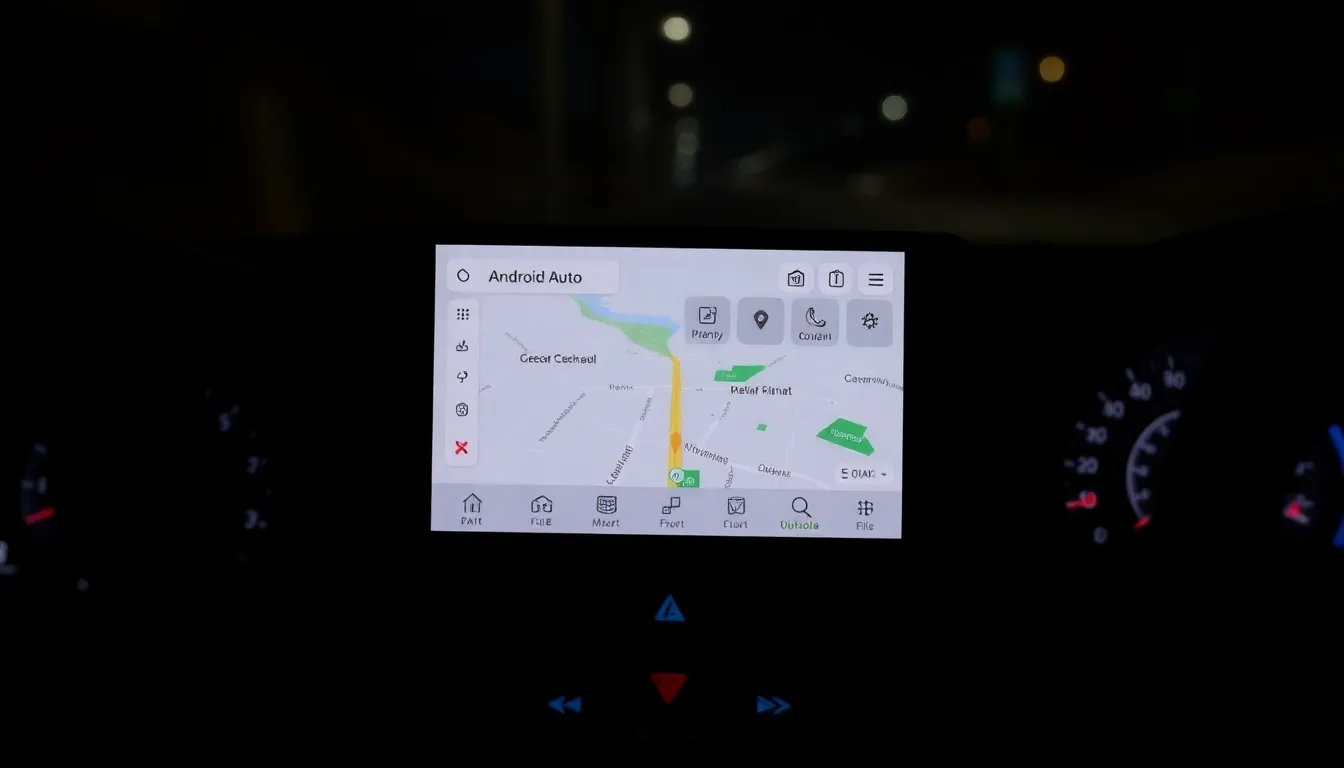
Android Auto has become an essential tool for many drivers, offering seamless integration of smartphone features into the car's display. However, a persistent display issue related to Android's Extra Dim feature has been frustrating users, particularly during nighttime driving. This problem arises when Extra Dim, an accessibility feature designed to reduce screen brightness below minimum levels, remains active on Android Auto, making the interface difficult to see.
Understanding the Extra Dim Problem
Introduced in Android 12, Extra Dim is a valuable feature for low-light environments, allowing users to lower screen brightness beyond standard settings to reduce eye strain. Unlike Dark mode, which can be scheduled automatically, Extra Dim requires manual activation and deactivation. This lack of automation means users often forget to turn it off, leading to compatibility issues with Android Auto. When connected to a car's display, the overly dim screen can compromise visibility and safety, as maps, messages, and media controls become hard to read.
Step-by-Step Solutions to Restore Display Clarity
To address this issue, several practical fixes can be implemented. First, users should manually disable Extra Dim before connecting to Android Auto. This can be done by accessing the Quick Settings panel on the Android device, tapping the Extra Dim icon to turn it off, and ensuring the screen brightness is adjusted to a comfortable level. For a more permanent solution, exploring third-party automation apps may help schedule Extra Dim based on time or location, though this requires additional setup and may not be supported natively.
Another approach involves checking for software updates on both the smartphone and the car's infotainment system, as newer versions of Android Auto might include improved handling of display settings. Additionally, resetting Android Auto's cache or reinstalling the app can resolve glitches that cause display inconsistencies. Users have reported that these steps often restore normal brightness and enhance the overall Android Auto experience.
Preventing Future Display Issues
To avoid recurring problems, it's advisable to establish a routine of checking display settings before driving. Creating a shortcut for Extra Dim in the device's settings menu can make toggling it on and off more convenient. Furthermore, providing feedback through official channels may encourage developers to integrate scheduling options for Extra Dim in future Android updates, addressing the root cause of this annoyance.
Conclusion
The Android Auto display issue caused by the Extra Dim feature is a common but manageable problem. By understanding how Extra Dim works and applying simple fixes, users can quickly restore optimal visibility and enjoy a safer, more reliable in-car experience. As Android continues to evolve, users can hope for more automated solutions, but in the meantime, these practical steps offer effective relief from this frustrating glitch.