How to Capture Better Audio with Samsung's Mobile Camera App
Samsung Galaxy devices are renowned for their camera capabilities, but many users overlook the audio recording features hidden within the Camera app. While the default video mode offers simplicity, it limits audio control by automating microphone selection. For those seeking professional-grade sound, the Pro Video mode provides essential tools to enhance audio capture.
Unlocking Advanced Audio Controls
The standard Video mode on Samsung phones uses built-in microphones by default, which works well for casual recordings. However, this automated approach can be restrictive when using external microphones or Bluetooth earbuds like Galaxy Buds. To access more granular audio settings, users must switch to Pro Video mode. This mode not only offers manual video controls but also allows microphone selection, giving creators flexibility based on their recording environment.
Step-by-Step Guide to Microphone Selection
To change the microphone settings in Samsung's Camera app, follow these steps:
- Open the Camera app on your Galaxy phone.
- Swipe to and tap More, then select Pro Video. For quicker access, drag and drop this mode to the main toolbar.
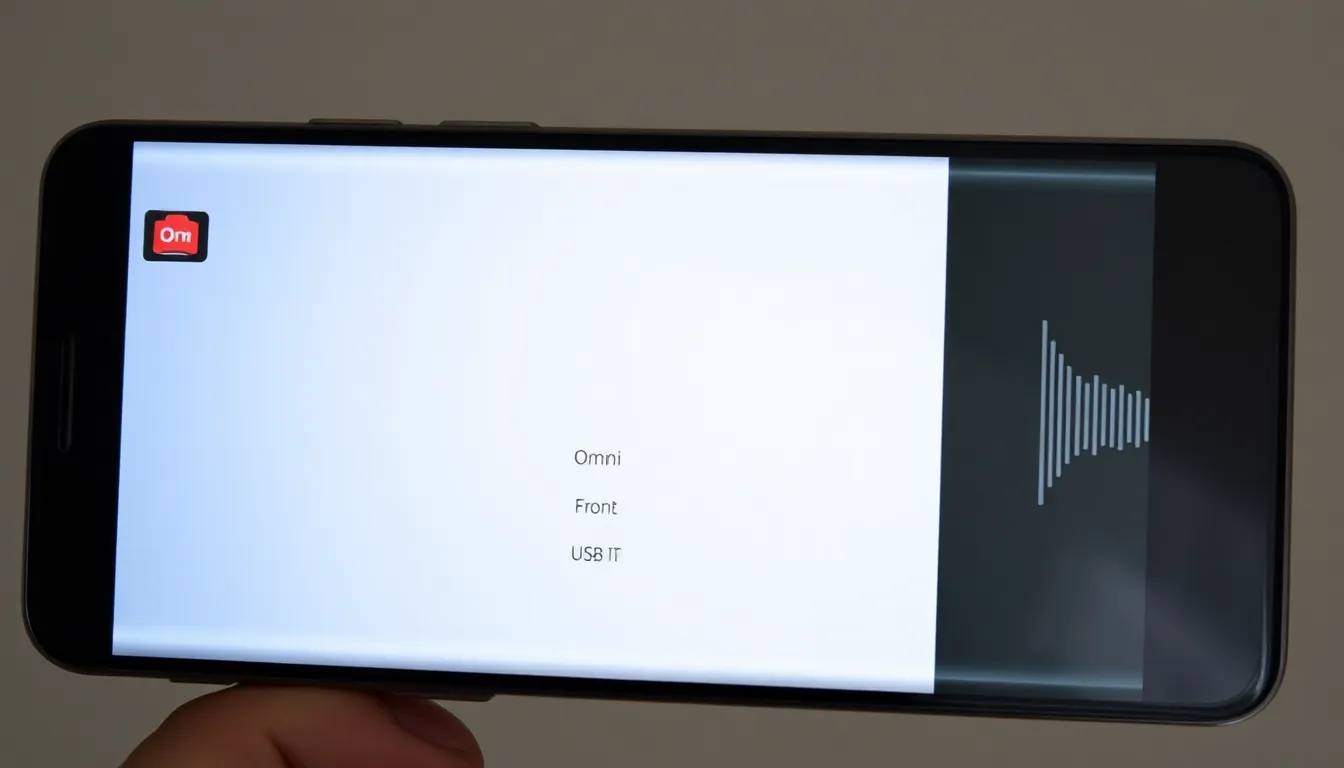
- In the Pro Video interface, tap the microphone icon at the top (in portrait orientation).
- Choose from the following options:
- Omni: Captures sound equally from all directions.
- Front: Focuses on sound coming from the front of the phone.
- Rear: Focuses on sound coming from the back of the phone.
- USB: Uses a connected USB microphone.
- BT (Bluetooth): Uses Bluetooth microphones, such as Galaxy Buds or other headphones.
- BT MIX: Combines audio from a Bluetooth mic and the phone's internal microphones.
Why Audio Quality Matters
High-quality audio is crucial for professional videos, vlogs, interviews, and content creation. By leveraging Pro Video mode, Samsung users can mitigate background noise, focus on specific sound sources, or integrate external devices for clearer recordings. For instance, selecting Front mic orientation improves voice clarity in selfie videos, while BT mode enables wireless microphone use for hands-free recording.
Conclusion
Samsung's Camera app offers robust audio recording features beyond its standard video mode. By exploring Pro Video settings, users can tailor microphone selection to their needs, whether using built-in mics, external USB devices, or Bluetooth earbuds. This functionality empowers creators to produce videos with enhanced sound quality, making it a valuable tool for both amateur and professional videographers. As mobile photography and videography evolve, mastering these audio controls can significantly elevate content production on Galaxy devices.