Got Your Galaxy S26? Change These Camera Settings Now
With the Galaxy S26 now in the hands of users worldwide, many are exploring its advanced camera capabilities. While the device offers impressive out-of-the-box performance, adjusting a few key settings can significantly enhance photo quality and creative control. These optimizations help users move beyond automatic modes to capture more professional-looking images.
Enable Composition Guides for Perfect Framing
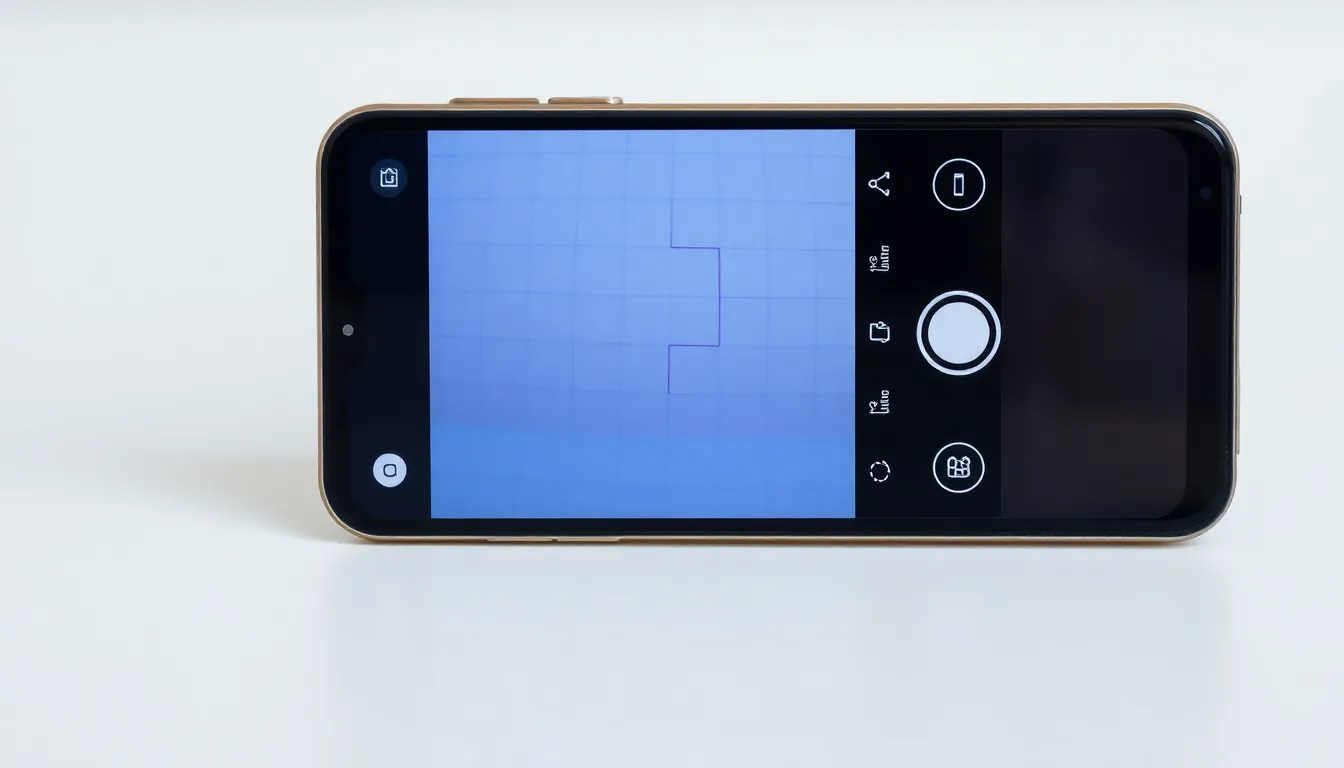
One of the first settings to adjust is the composition guide, found in the camera app's settings menu. This feature overlays grid lines and a level indicator on the viewfinder. The grid follows the rule of thirds—a fundamental photography principle that divides the frame into nine equal sections. Placing subjects along these lines or at their intersections creates more balanced and visually appealing compositions. The level indicator ensures horizons are straight, preventing tilted landscape shots. This simple adjustment helps users frame photos more intentionally, resulting in images that look more polished and professional.
Take Control with Camera Assistant
For greater control over camera behavior, users should explore the Camera Assistant features. Once downloaded, one critical setting to disable is automatic lens switching. By default, the phone decides which rear camera to use based on lighting and distance. While convenient, this automation sometimes prioritizes the main camera in suboptimal conditions, particularly when zooming. Disabling this feature allows photographers to manually select the lens best suited for their shot—whether ultra-wide, main, or telephoto. This ensures consistent quality, especially in zoom scenarios where the dedicated telephoto lens typically outperforms digital cropping from the main sensor.
Additional Optimizations for Better Results
Beyond these primary adjustments, several other settings warrant attention. Users might explore options like adjusting the shutter speed for motion control, tweaking white balance for accurate colors in different lighting, or enabling high-resolution modes for maximum detail. Experimenting with these features helps photographers adapt to various scenarios, from fast-moving subjects to low-light environments. While the Galaxy S26's automatic modes are competent, manual adjustments unlock the hardware's full potential, catering to both casual shooters and photography enthusiasts.
Conclusion: Personalize Your Photography Experience
Adjusting these camera settings transforms the Galaxy S26 from a point-and-shoot device into a versatile photographic tool. Enabling composition guides improves framing, while taking control of lens switching ensures optimal hardware usage. These changes, though simple, empower users to capture higher-quality images that reflect their creative vision. As with any advanced camera system, spending time customizing settings pays dividends in photo quality and user satisfaction.