4 Android Auto Settings I Changed to Make It Feel Truly Mine
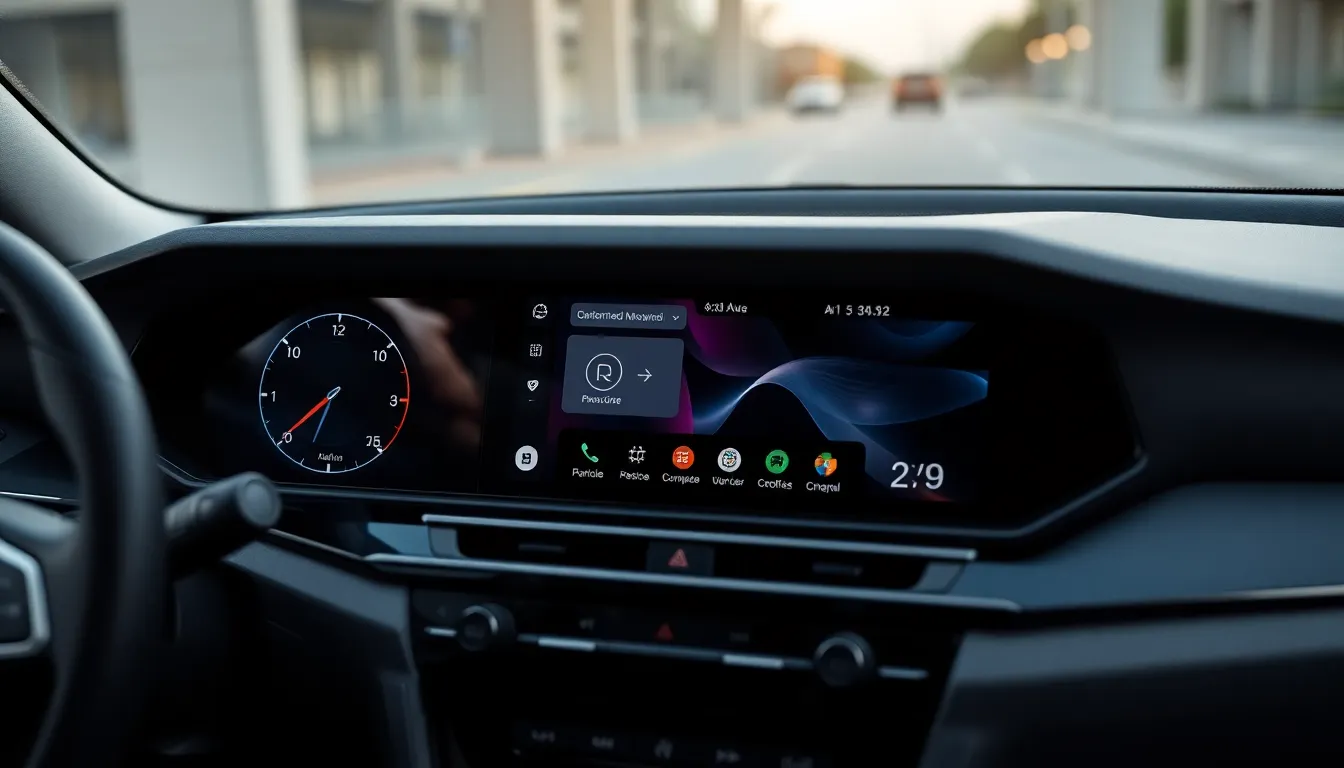
Android Auto has evolved into a versatile in-car infotainment platform that offers significant customization potential. While some users might initially find its interface less polished than alternatives, a few strategic adjustments can transform the experience into something uniquely personal. These settings go beyond basic functionality to create a driving environment that feels tailored to individual preferences.
Setting Night Mode to Always Be On
One of the most impactful changes involves permanently enabling Night Mode for mapping applications. This setting, accessible through Settings > Day/Night Mode within Android Auto, ensures consistent visual comfort regardless of lighting conditions. While the automatic option switches between light and dark modes based on time of day, many users prefer the permanent dark theme for its reduced eye strain and improved visibility during navigation. The darker interface makes maps like Google Maps and Waze easier to read at a glance, particularly during long drives or in varying light conditions.
Custom Wallpaper Personalization
Contrary to common assumptions, setting a custom Android Auto background requires no complicated workarounds. The process involves navigating to Settings > Connected devices > Connection preferences > Android Auto on your Android device, then selecting Use Phone's Wallpaper in Android Auto. Users can choose any image from their device's storage by opening it in the Files app, selecting the three-dot menu, choosing Use as, and tapping Photos Wallpaper. This simple customization adds a personal touch that makes the infotainment system feel less generic and more connected to the user's preferences.
App Organization and Interface Tweaks
Beyond visual customization, Android Auto allows users to organize their most-used applications for quicker access. The platform's open nature means users can prioritize navigation, music, and communication apps based on their driving habits. Some users report that arranging these applications strategically reduces distraction and improves the overall driving experience. The ability to customize which apps appear prominently and in what order creates a workflow that matches individual driving patterns and preferences.
Additional Customization Options
Several other settings contribute to personalizing the Android Auto experience. These include notification preferences that determine which alerts appear while driving, audio balance adjustments for different vehicle acoustics, and startup behavior configurations. While these might seem like minor adjustments, collectively they create an infotainment system that responds to specific user needs rather than offering a one-size-fits-all solution.
Conclusion
Android Auto's strength lies in its customizability, allowing users to transform a standard infotainment interface into something that feels personally tailored. From permanent dark mode for visual comfort to custom wallpapers that add personality, these adjustments demonstrate how software personalization can enhance the driving experience. As in-car technology continues to evolve, the ability to customize these systems according to individual preferences will likely become increasingly important to users seeking both functionality and personal connection with their vehicles' technology.